Your website administrator account lets you log in to the Online Candidate administration area and manage your website.
You only need to complete this process once for the first administrator account. Additional users can be added later from Site Settings → User Management.
Before you begin
Open the account-creation link provided with your new website order.
Have the following information ready:
- The email address you want associated with the administrator account
- The name and contact information of the person primarily responsible for the website
- A secure password
The primary website contact can be different from the person who placed the order.
Create the account
-
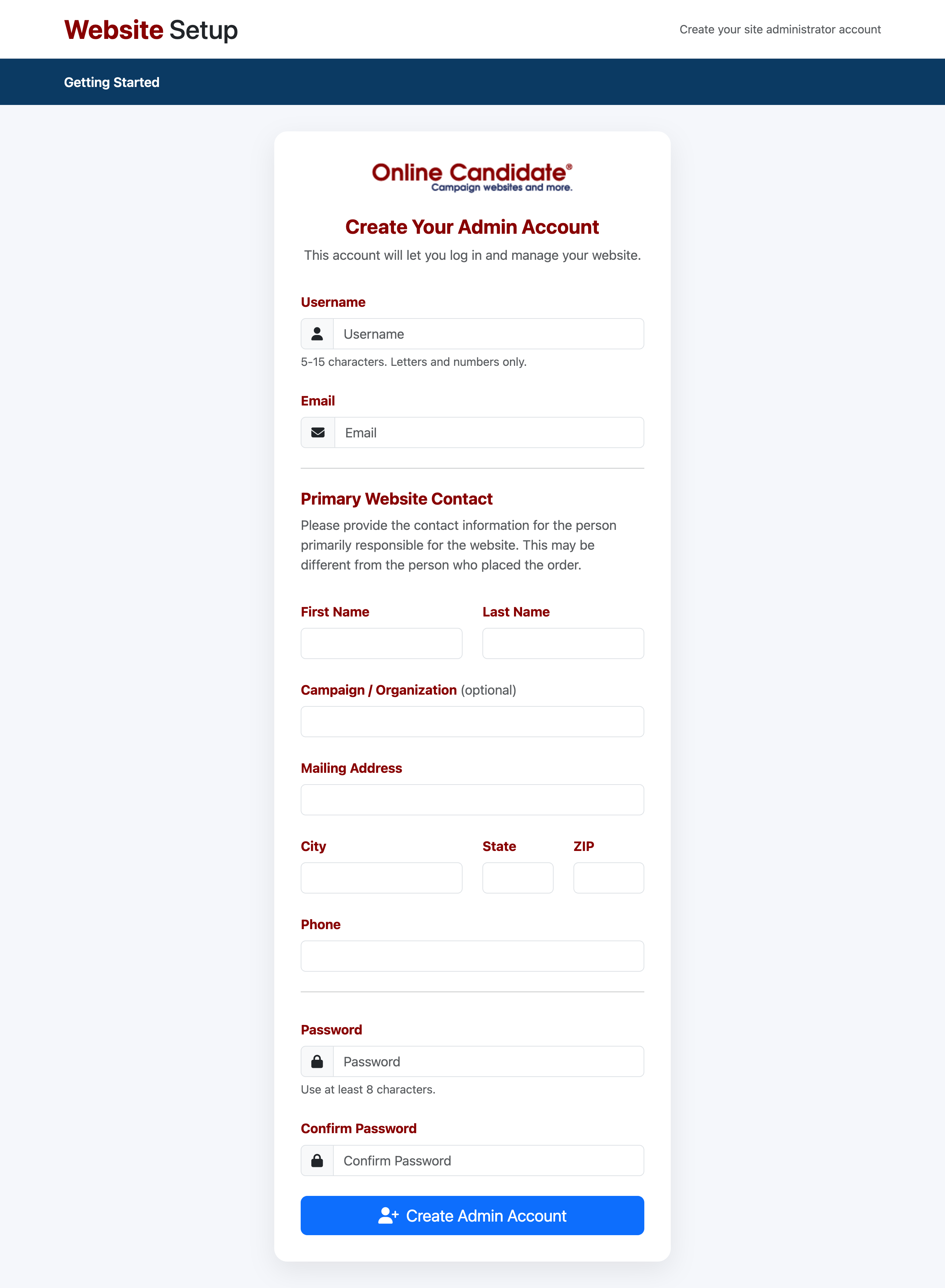
Enter a Username.
The username must contain 5–15 characters and may use letters and numbers only.
-
Enter your Email address.
Use an address you can access. Account confirmations and password-reset messages will be sent to this address.
-
Under Primary Website Contact, enter the contact information for the person primarily responsible for the website:
- First name
- Last name
- Campaign or organization, if applicable
- Mailing address
- City
- State
- ZIP code
- Phone number
-
Enter a Password containing at least eight characters.
Use a unique password that is not shared with another website or service.
-
Enter the same password again in Confirm Password.
-
Select Create Admin Account.
Account confirmation
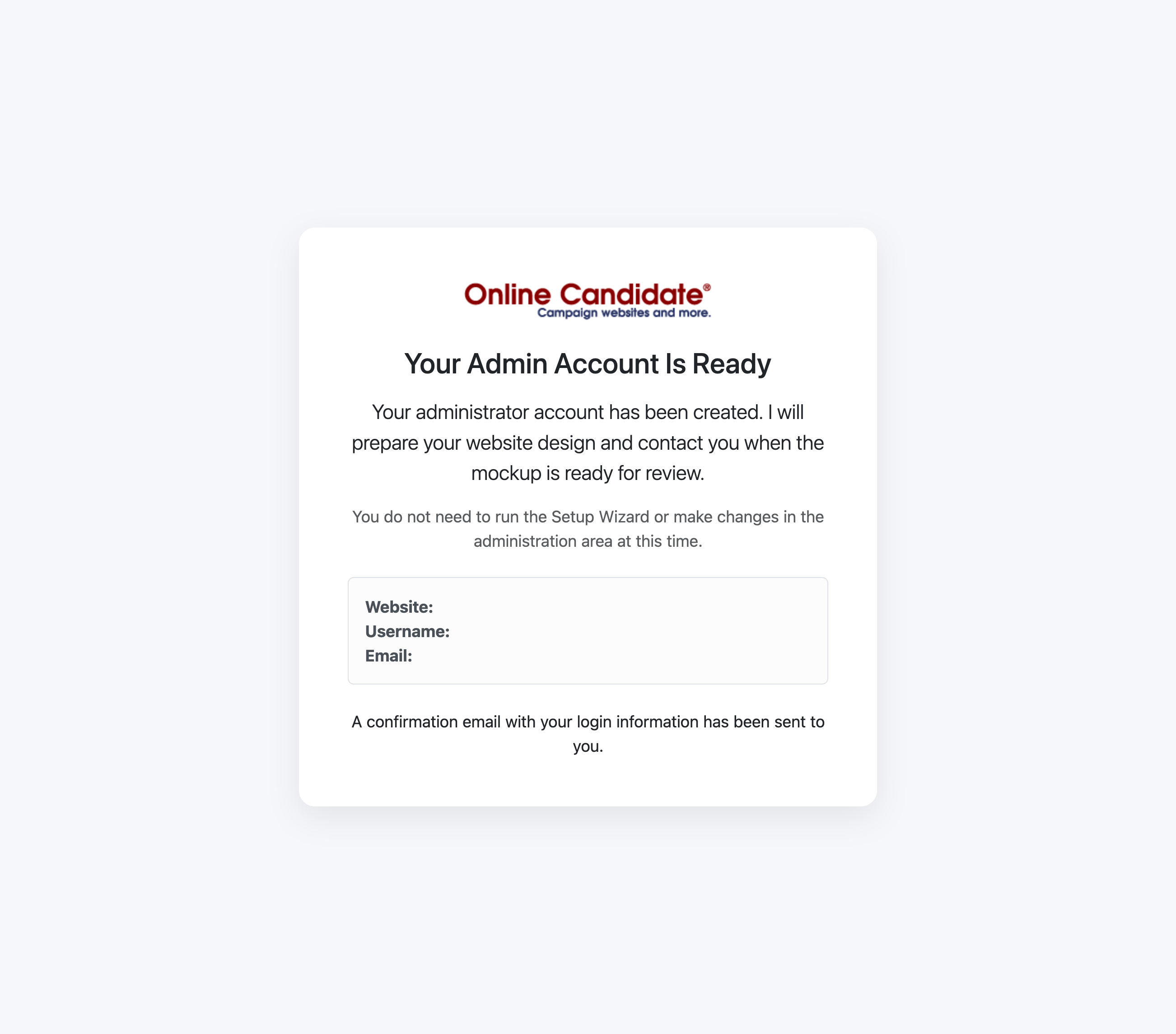
After the account is created, the Your Admin Account Is Ready page displays your:
- Website address
- Username
- Administrator email address
A confirmation email containing your login information is also sent to the administrator email address.
Keep the confirmation email for your records, but do not forward your password or share your administrator account with other users. Additional users should receive their own accounts.
What happens next?
Follow the instructions shown on the confirmation page:
- If Online Candidate is preparing a custom website design or mockup, wait until you are contacted for review. You do not need to run the Setup Wizard or change the website during this time.
- If your website is ready for self-setup, continue to the Website Setup Wizard when prompted.
Troubleshooting
The username is not accepted
Make sure it contains 5–15 characters and uses only letters and numbers. Do not include spaces or punctuation.
The passwords do not match
Enter the password again in both password fields. The entries must match exactly.
I did not receive the confirmation email
Check your spam or junk folder and confirm that the email address shown on the confirmation page is correct. If the message still does not arrive, contact Online Candidate support.
I closed the confirmation page
Use your website administration address and the username and password you created to log in. If you cannot remember the password, use the Forgot Password link on the administrator login page.
Related articles
- Log In to Your Website Administration
- Complete the Website Setup Wizard
- Reset Your Administrator Password