Log in to the Online Candidate administration area to manage your website’s content, design, settings, forms, and publishing options.
Before you begin
You will need:
- Your website administration login address
- The username you selected when creating your administrator account
- Your administrator password
Your website-administration account is separate from the Online Candidate Client Portal used for billing, domains, support tickets, and other account services.
Log in
-
Open your website administration login address in a web browser.
Use the address provided in your administrator-account confirmation email. Consider bookmarking it for future use.
-
Enter your Username.
-
Enter your Password.
-
Select Login.
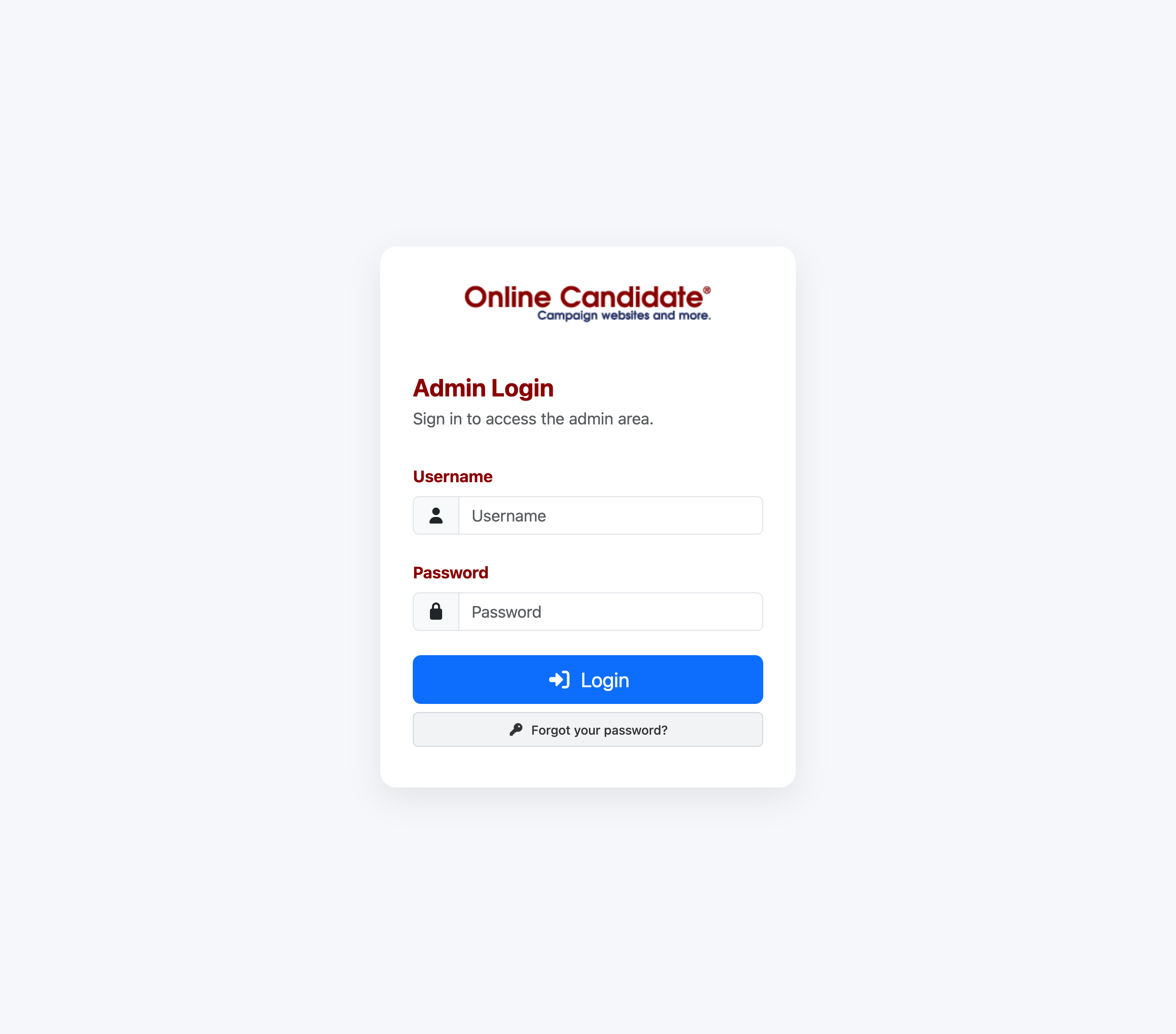
After your information is accepted, the website administration area opens.
The screen you see next depends on the status of your website:
- During initial setup, you may be asked whether you want to use the Website Setup Wizard.
- If setup has already been completed, you will normally see the Dashboard.
- If Online Candidate is preparing a custom design or mockup, follow the instructions provided with your order before making website changes.
Troubleshooting
My username or password is not accepted
Check that:
- You are using your website-administration credentials, not your Client Portal credentials.
- The username is entered exactly as it was created.
- Caps Lock is not enabled when entering your password.
- Your browser has not automatically inserted credentials for another account.
If you still cannot log in, select Forgot your password? to reset the password associated with your administrator account.
I do not know my username
Check the administrator-account confirmation email. Your username was also displayed on the Your Admin Account Is Readyconfirmation page.
If you cannot locate it, contact Online Candidate support.
I do not know the login address
Check the confirmation email sent when the administrator account was created. If you cannot locate the message, contact Online Candidate support.
I logged in but do not see the screen shown in this guide
Make sure you are in the website administration area rather than the Client Portal. The administration screen may also differ depending on whether this is your first login or the website has already been set up.
Security recommendations
- Do not share administrator usernames and passwords.
- Create a separate account for each person who needs access.
- Use a unique password that is not used for another website or service.
- Log out when using a shared or public computer.
Additional administrator accounts can be managed from Site Settings → User Management.
Related articles
- Create Your Website Administrator Account
- Reset Your Administrator Password
- Complete the Website Setup Wizard
- Add or Manage Website Administrators